
How it works
Open. Fix. Review. Save.
Each step is visible and reversible until you save, and every save is a new copy. This describes the current development build, which is not yet available.
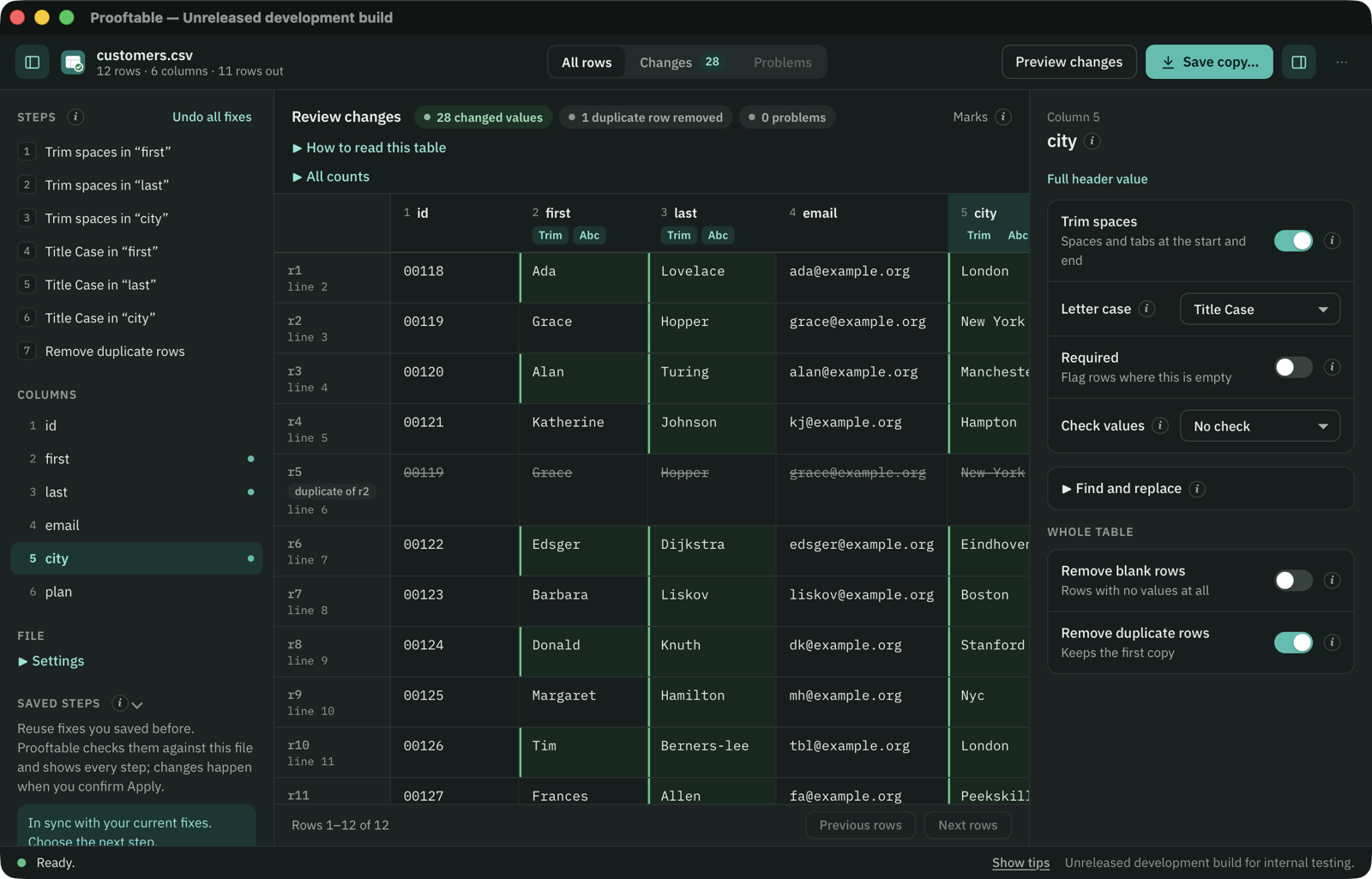
1. Open a file
Choose a comma, semicolon, tab or pipe separated file, or an Excel workbook (.xlsx). Before anything else, a sheet shows the first rows with the text encoding (UTF-8, UTF-16, Windows-1252 or ISO-8859-1), separator and header row, so you can correct them while you look. The encoding, separator, dates and numbers are never guessed. For a workbook you pick the sheet, and its cells are read as plain text: numbers in their exact form, date cells as ISO dates like 2024-03-01, formulas as their last saved result.
Malformed quoting, text that doesn’t decode in the chosen encoding, and rows with the wrong number of values are reported with their line, never silently repaired. The original file is only read.
2. Choose fixes
- Trim spaces removes only ASCII space (U+0020) and tab (U+0009) at the edges of values in the columns you pick.
- Find and replace changes text in one column, as plain text or a pattern, with matched groups when you want to rearrange values. Start from the find bar’s search.
- Letter case changes a column to UPPER, lower or Title Case.
- Edit a value sets one cell by hand, for the case no rule covers. It applies to this file only.
- Remove blank rows leaves out rows where every value is empty after trimming.
- Remove duplicate rows compares full resulting records after trimming and case, or only the key columns you tick, keeping the first in file order. Without key columns, matching IDs alone are not duplicates.
- Required and value checks (whole number, decimal, date, email) run on retained resulting strings. They flag problems for you to resolve before saving; they never change a value.
- Leave flagged rows out saves the rows that pass and lists the rest, with their reasons, in a problem-rows file.
3. Review every change
Preview highlights each changed value and shows what it was when you point at it, marks the spaces and tabs being removed, and counts changed values, blank and duplicate rows removed, and problems. Changes lists only what changes and Problems lists what needs attention; you can also search, filter and sort the whole file. Changing a fix means previewing again; undo recomputes from the untouched original.
4. Save a clean copy
Choose the separator, line endings and which columns the saved copy keeps, in what order and under what names, and add columns that join two columns or take part of one. Each save goes into its own new folder with the CSV, a manifest of what changed and, when rows were left out, an omitted-record artifact. Existing files are never replaced.
Values are not bytes: quoting and line endings are written fresh, so the saved file is not byte-identical to the original even where values are unchanged. Values that look like formulas are saved as they are.
Reuse the same fixes
Saved steps store your settings and fixes, not your rows. They apply only to files with the same separator, header row and column names, and each reuse shows every step and asks you to confirm before anything is filled in. Help is built in: Help › Prooftable Help explains each step.